Scripts
The Scripts page lets you store shell scripts, run one of them on a single host, and review the results of past runs. It has three tabs: Script Library, Execute Script, and Script Executions.
Open-source vs Professional+
This page documents the open-source Scripts feature. It is deliberately single-host and stateless: you save a script, pick one host, run it, and read the output. There is no version history, no approval workflow, no scheduling/cron, no typed parameters, and no multi-host or fleet targeting. Those power features live in the Professional+ Automation Engine. If you need scheduled runs, parameterized scripts, run-against-many-hosts, or change approvals, use the Automation Engine instead of this page.
Script Library
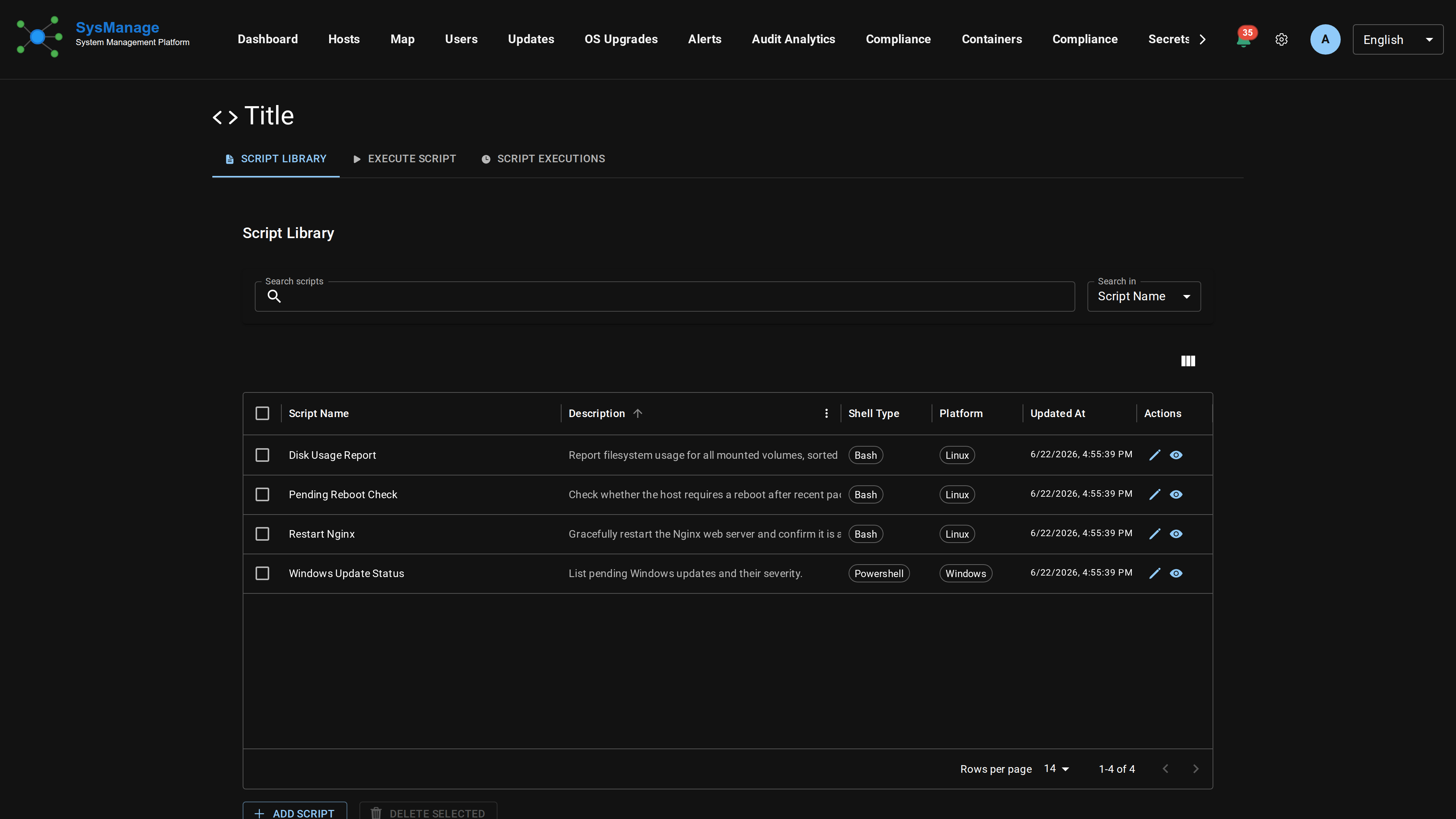
The Script Library tab is a grid of your saved scripts. Each row shows the script Name, Description, Shell Type, Platform, and the last Updated time. Shell type and platform are shown as small labels.
Controls on this tab:
- Search filters the grid. Pick which column to search (name, description, shell type, or platform) and type a term.
- Column visibility lets you hide or show grid columns; your choice is remembered.
- Add Script opens the editor dialog to create a new script. Requires the
Add Scriptpermission. - Delete Selected deletes every script whose checkbox is ticked, after a confirmation prompt. Requires the
Delete Scriptpermission. - The pencil icon on a row opens that script in the editor dialog (requires
Edit Script). The eye icon opens a read-only view.
The read-only view shows the description, shell-type and platform labels, the last-updated time, and the script body in a syntax-highlighted, read-only editor. From the view dialog you can jump to Edit or Delete if you hold those permissions.
Add / Edit Script dialog
The Add and Edit dialogs share the same form:
- Name (required) and Description (optional, multi-line).
- Shell Type dropdown. The available shells depend on the selected platform:
bash,sh,zsh, andkshon Linux, macOS, and the BSDs;powershellon Windows, Linux, and macOS;cmdon Windows only. - Platform dropdown: Linux, macOS (darwin), Windows, FreeBSD, OpenBSD, or NetBSD. Changing the platform narrows the shell list, and if the current shell is not valid for the new platform the dialog switches to the first valid one.
- Script content editor (Monaco), syntax-highlighted for the chosen shell.
When you have not yet edited the body, the editor pre-fills an appropriate header for the shell and platform: a shebang such as #!/bin/bash or #!/usr/local/bin/bash for Unix shells, a comment header for PowerShell, or @echo off for cmd. The header path follows the platform (for example bash sits in /usr/local/bin on the BSDs). Once you type into the editor the header is left alone.
Name and content are both required to save. Save creates a new script; in Edit mode the button reads Update and overwrites the existing one.
Execute Script
The Execute Script tab runs one saved script on one host. It has two panels: a selection panel on the left and an output panel on the right.
- Pick a script from the Select Script dropdown (saved scripts only).
- Pick a host from the Select Host dropdown. The host list is filtered to compatible hosts only: the host must have script execution enabled, its platform must match the script's platform, and it must have the script's shell enabled. Each host shows a Connected or Offline label.
- Click Execute Now. Requires the
Run Scriptpermission. If the chosen host looks offline you are asked to confirm before the run is sent.
After you start a run, the output panel polls for results and shows a live status. When the run finishes, the panel shows the final status label, the exit code, start and completion times, and the captured output split into STDOUT, STDERR, and (if present) an ERROR section. If the agent returned nothing, the panel says so. Possible statuses are pending, running, completed, failed, and timeout.
The refresh icon in the panel header resets the tab, clearing the selected script, host, and output so you can start over.
Script Executions
The Script Executions tab is the run history. The grid lists past executions with Script Name, Host FQDN, Status, Started, Completed, Exit Code, and Execution Time (in seconds). It is sorted newest-first and auto-refreshes roughly every 30 seconds while you are on the tab.
The eye icon opens an execution's details: script name, host, status, execution ID, start and completion times, exit code, run time, and the full stdout, stderr, and error message. The icon is disabled for rows that captured no output.
Tick one or more rows and use Delete Selected Executions to remove history records. This requires the Delete Script Execution permission.
Permissions
Each action is gated by its own permission, and buttons are hidden when you lack the matching one:
Add Script— create scripts.Edit Script— edit existing scripts.Delete Script— delete scripts.Run Script— execute a script on a host.Delete Script Execution— remove execution-history records.