Operating System Upgrades
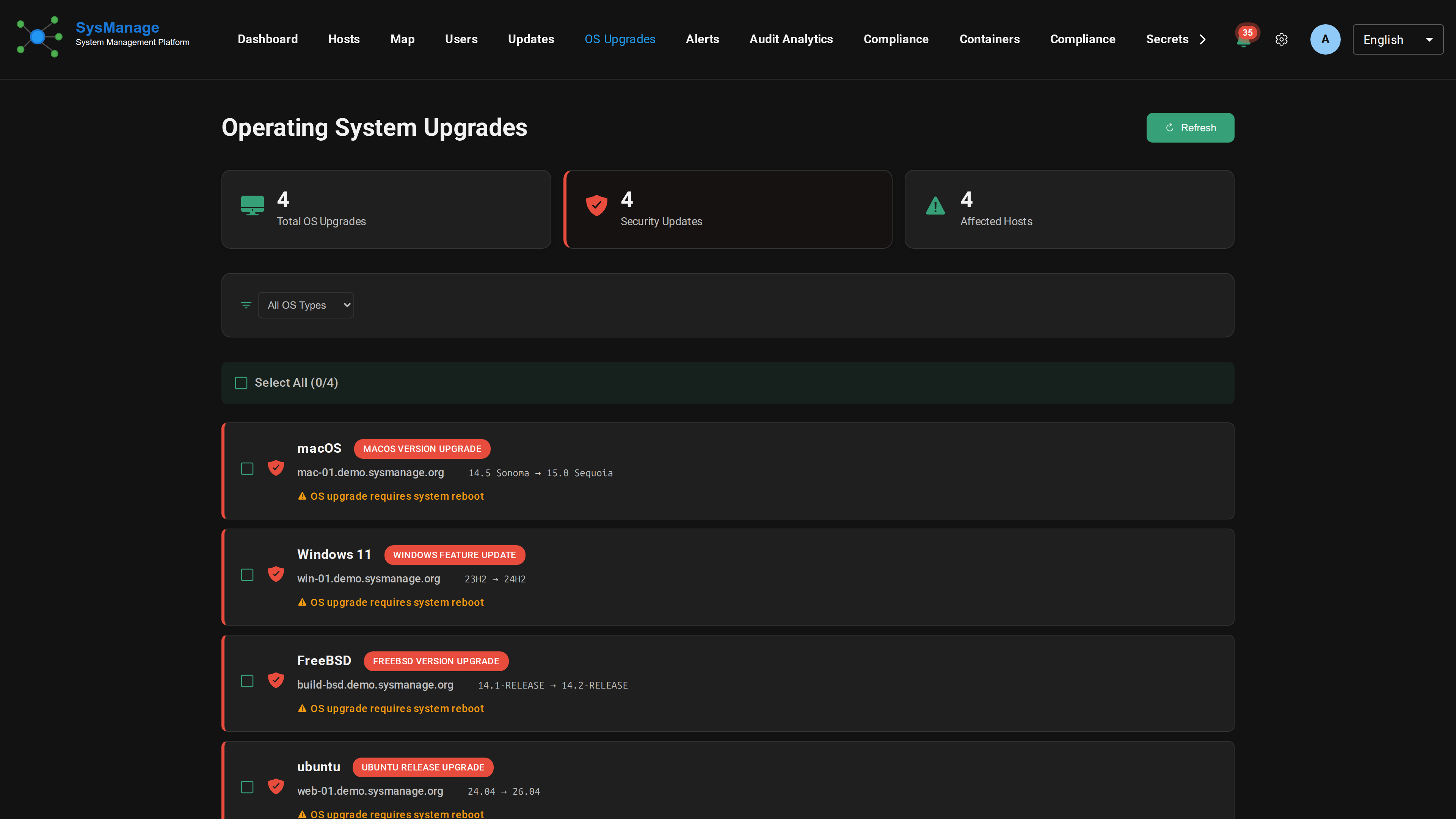
The Operating System Upgrades page handles full OS version changes — distribution release upgrades, macOS version upgrades, Windows feature updates, and BSD system upgrades — separately from routine package updates. Use it to see which managed hosts have an OS upgrade available and to apply those upgrades across the fleet.
Updates vs OS Upgrades
Routine package updates (security patches and individual package versions) are handled on the Updates page. OS Upgrades are different: they move a host to a new operating-system release — for example Ubuntu 22.04 to 24.04, or a macOS major version — and almost always require a reboot. SysManage keeps the two flows separate so a major upgrade is always a deliberate action.
Opening the page
Select Operating System Upgrades from the navigation. The page shows three summary cards and a table of every detected OS upgrade across your hosts:
- Total OS Upgrades — how many hosts have an OS upgrade available.
- Security Updates — how many of those upgrades are security-relevant.
- Affected Hosts — the number of distinct hosts involved.
Each table row shows the host, the kind of upgrade, and a status pill — Upgrade Requested, Successfully Upgraded, or Upgrade Failed.
Supported upgrade types
SysManage detects and applies OS upgrades on:
- Ubuntu / Debian release upgrades
- Fedora version upgrades
- openSUSE distribution upgrades
- macOS version upgrades
- Windows feature updates
- OpenBSD system upgrades
- FreeBSD version upgrades
- NetBSD upgrades
Filtering by OS type
Use the OS type filter at the top of the table to narrow the list to a single platform — Ubuntu/Debian, Fedora, openSUSE, macOS, Windows, OpenBSD, FreeBSD, or NetBSD. Choose "All OS Types" to clear the filter. If a filter hides everything, the table shows "No OS upgrades match the current filter".
Applying upgrades
To apply OS upgrades:
- Optionally filter the list to the platform you want to work on.
- Select individual rows, or use Select All to select every upgrade currently shown (the count is displayed next to the control).
- Click Execute Selected OS Upgrades. The selected hosts each begin their upgrade and move to the Upgrade Requested state.
- Use Refresh to re-check status as upgrades complete; rows move to Successfully Upgraded or Upgrade Failed.
Reboots: an OS upgrade almost always reboots the host as part of moving to the new release. Plan upgrades for a maintenance window, and expect affected hosts to drop offline briefly while they reboot into the new version.
Notes
- OS upgrades are larger and slower than package updates — they download a full release and reconfigure the system, so they take considerably longer than applying a set of package updates.
- There is no automatic rollback for an OS upgrade. Make sure you have a current backup or snapshot before upgrading production hosts.
- An upgrade only appears here once the agent has detected that a newer OS release is available for that host's platform.