Audit Log Viewer
The Audit Log Viewer lets you browse the recorded history of actions taken in SysManage, narrow the results with filters, and export the matching entries for review or archiving.
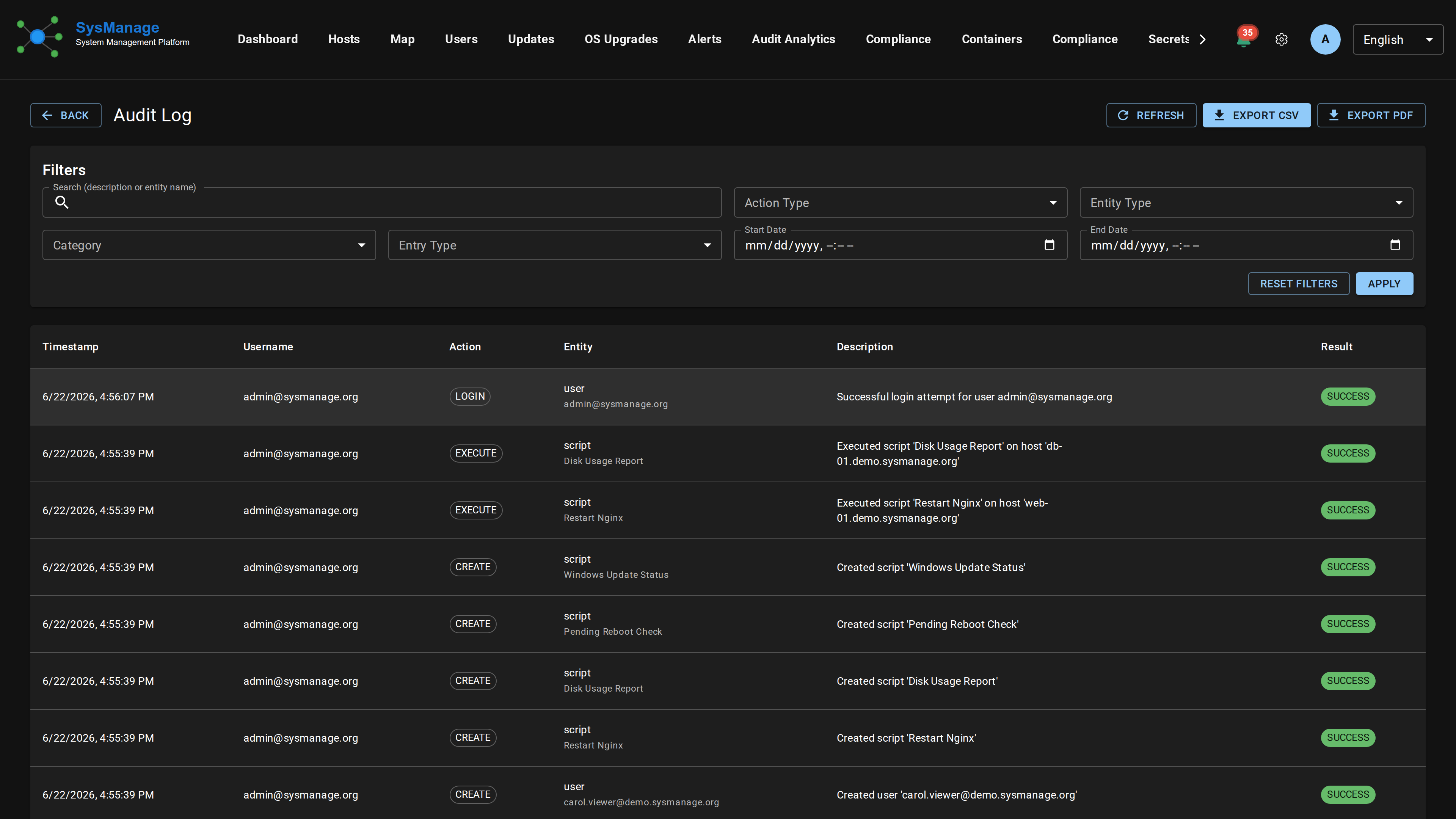
Overview
The audit log records user actions, system events, security events, and data changes across SysManage. The viewer is reached from the Security section of the Reports page. It presents a set of filters, a paginated results table, and export buttons. Use the Refresh button at the top to reload the current view at any time.
Filters
The Filters panel narrows which entries appear in the results table. Set any combination of the fields below, then click Apply Filters to run the query. Click Reset Filters to clear every field and return to the unfiltered view. Empty filters are ignored, so leaving a field blank means "no restriction" for that field.
- Search A free-text box that matches against the entry description or entity name.
- Action Type A dropdown limiting results to a single action. Options are
Create,Read,Update,Delete, andExecute, plusAllfor no restriction. - Entity Type A dropdown limiting results to a single kind of object. Options are
Host,User,Package,Script,Secret,Certificate,Tag, andUser Role, plusAll. - Category A dropdown limiting results to a functional area. Options are
Database,Agent,Authentication, andSystem, plusAll. - Entry Type A dropdown limiting results by the nature of the entry. Options are
User Action,System Event,Security Event, andData Change, plusAll. - Start Date A date-and-time picker. Only entries at or after this moment are shown.
- End Date A date-and-time picker. Only entries at or before this moment are shown.
The Start Date and End Date values are sent to the server as UTC timestamps, so the date range is applied consistently regardless of your local time zone.
Results Table
The results table shows one row per audit entry with the following columns:
- Timestamp When the action occurred, shown as a UTC timestamp.
- Username The user associated with the entry.
- Action The action type (for example
CREATEorDELETE), shown as a chip. - Entity The entity type, with the entity name shown beneath it when one is recorded.
- Description A human-readable description of what happened.
- Result The outcome, shown as a colored chip:
SUCCESSis green,FAILUREis red, andPARTIALis amber.
Pagination
Results are paged. The pagination control at the bottom of the table lets you choose a page size of 10, 25, 50, or 100 rows, with 25 as the default. The control also displays the range of entries currently shown and the total count of matching entries, and provides controls to move between pages. Changing the page size returns you to the first page.
Exporting
Two export buttons sit at the top of the page next to Refresh:
- Export CSV Downloads the matching entries as a comma-separated values file.
- Export PDF Downloads the matching entries as a PDF document.
Exports honor the filters currently set on the Filters panel, so the exported file contains the same entries as the result of your query rather than the entire log. The downloaded file is named with the current date, for example audit_log_2026-06-22.csv.
Edition Requirements
Browsing and filtering the audit log is available in all editions of SysManage. Export is a Professional+ feature. In the Community Edition the server rejects export requests with an HTTP 402 response, and the viewer shows the message "Audit log export requires a SysManage Professional+ license." Upgrade to a Professional or higher tier to enable CSV and PDF export.
Audit log retention is also a Professional+ capability, handled by the audit engine rather than this viewer. See Audit (Professional+) for retention policy details.